
Connect an AI agent
Connect ChatGPT, Claude or another AI agent to Labelme, and it can work on the image you have open. It can look at the image, read its shapes, add shapes, select shapes and delete them. Locked shapes can't be deleted.
Your agent's app asks you before each change, unless you set it to allow Labelme's tools without asking. Each time your agent adds or deletes shapes, one ⌘Z (Ctrl+Z on Windows and Linux) undoes that step. A request that adds shapes and then deletes others takes two.
AI agents work in Pro, Pro Lifetime and the free trial.
Turn it on in Labelme
In Labelme, choose File › Connect AI Agent… and turn on Let AI agents connect to Labelme.
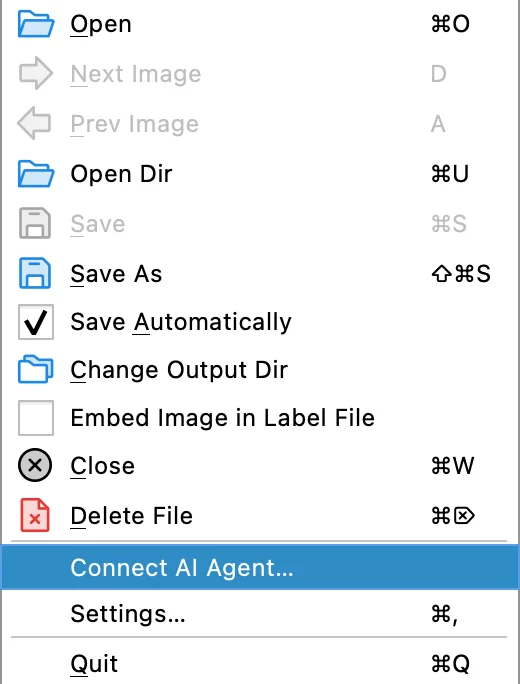
Then connect your app with one of the sections below. You only do this once.
Claude desktop app
- In Connect AI Agent…, open the Claude Desktop tab and click Add to Claude Desktop….
- Click Install in Claude. Claude says the extension is unverified. That's expected.
- Ask Claude about the image open in Labelme, for example "Outline every object in the image open in Labelme." Claude asks you before each change, unless you choose to always allow it.
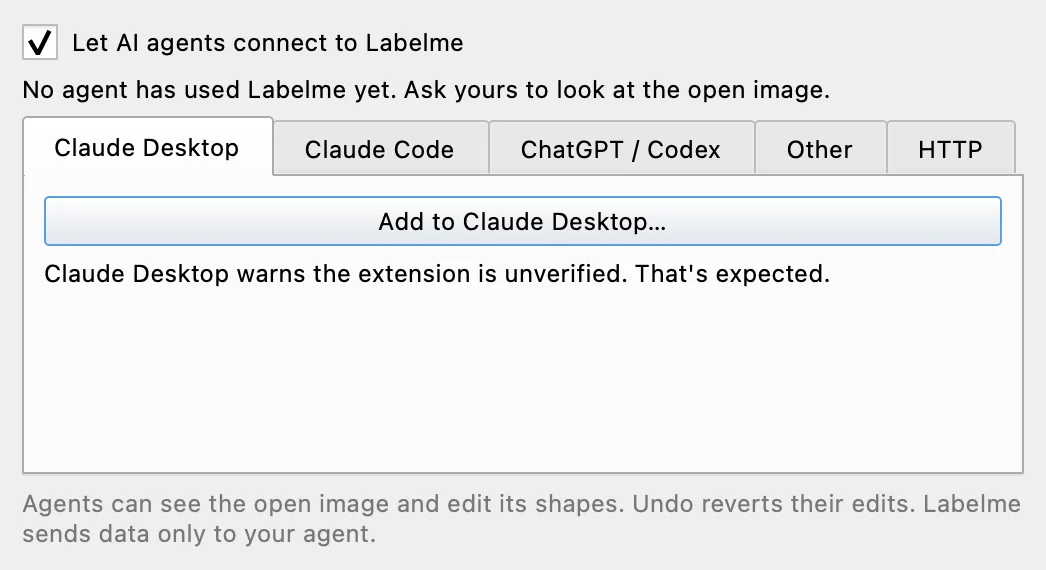
Any Claude account works.
ChatGPT desktop app
- In Connect AI Agent…, open the ChatGPT / Codex tab and click Install Labelme plugin.
- Restart ChatGPT.
- Open Codex in the ChatGPT desktop app and ask about the image open in Labelme. Codex asks you before each change, unless its approval settings allow it.
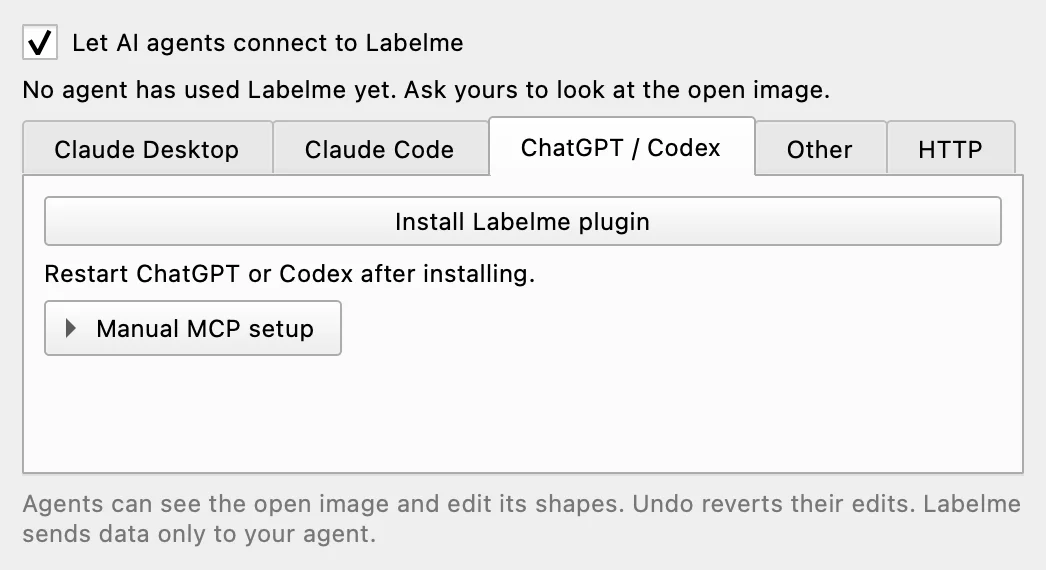
Labelme works through Codex, which OpenAI includes on every ChatGPT plan, Free included. ChatGPT in a web browser can't reach apps on your computer.
Claude Code, Codex, Cursor and other apps
Connect AI Agent… adds Labelme to Claude Code in one click. For Codex, Cursor and other apps, it copies the config to paste. That includes apps that run a model on your computer.
The examples below are for macOS. Labelme fills in its own path when you copy the config.
Claude Code:
claude mcp add --scope user labelme -- \
  /Applications/Labelme.app/Contents/MacOS/Labelme --mcp-stdio
Codex, in ~/.codex/config.toml:
[mcp_servers.labelme]
command = "/Applications/Labelme.app/Contents/MacOS/Labelme"
args = ["--mcp-stdio"]
Cursor, in ~/.cursor/mcp.json:
{
  "mcpServers": {
    "labelme": {
      "command": "/Applications/Labelme.app/Contents/MacOS/Labelme",
      "args": ["--mcp-stdio"]
    }
  }
}
Using another app? Tell us at support@labelme.io.
Where your images go
Labelme sends the open image only to the app you connect, and only when your agent asks to see it. That app sends it to its model. To keep everything on your computer, connect an app that runs its model locally.
Labelme's built-in models, such as SAM2, SAM3, EfficientSAM and YOLO-World, always run offline on your computer.
Questions
Do I need to use a terminal? No. The ChatGPT and Claude desktop apps connect with a button in Labelme. Only coding agents like Claude Code take a command.
Does it work on Windows and Linux? Labelme does. The ChatGPT and Claude desktop apps run on macOS and Windows. On Linux, connect Claude Code, Codex or Cursor.
Does Labelme need to be open? Yes, your agent works in the open Labelme window. If Labelme is closed, your agent asks you to open it.