
Read annotations with Python
Read the polygon you saved in your first annotation using Python. This tutorial is optional. You do not need Python to draw or edit annotations in the app.
Prepare the file
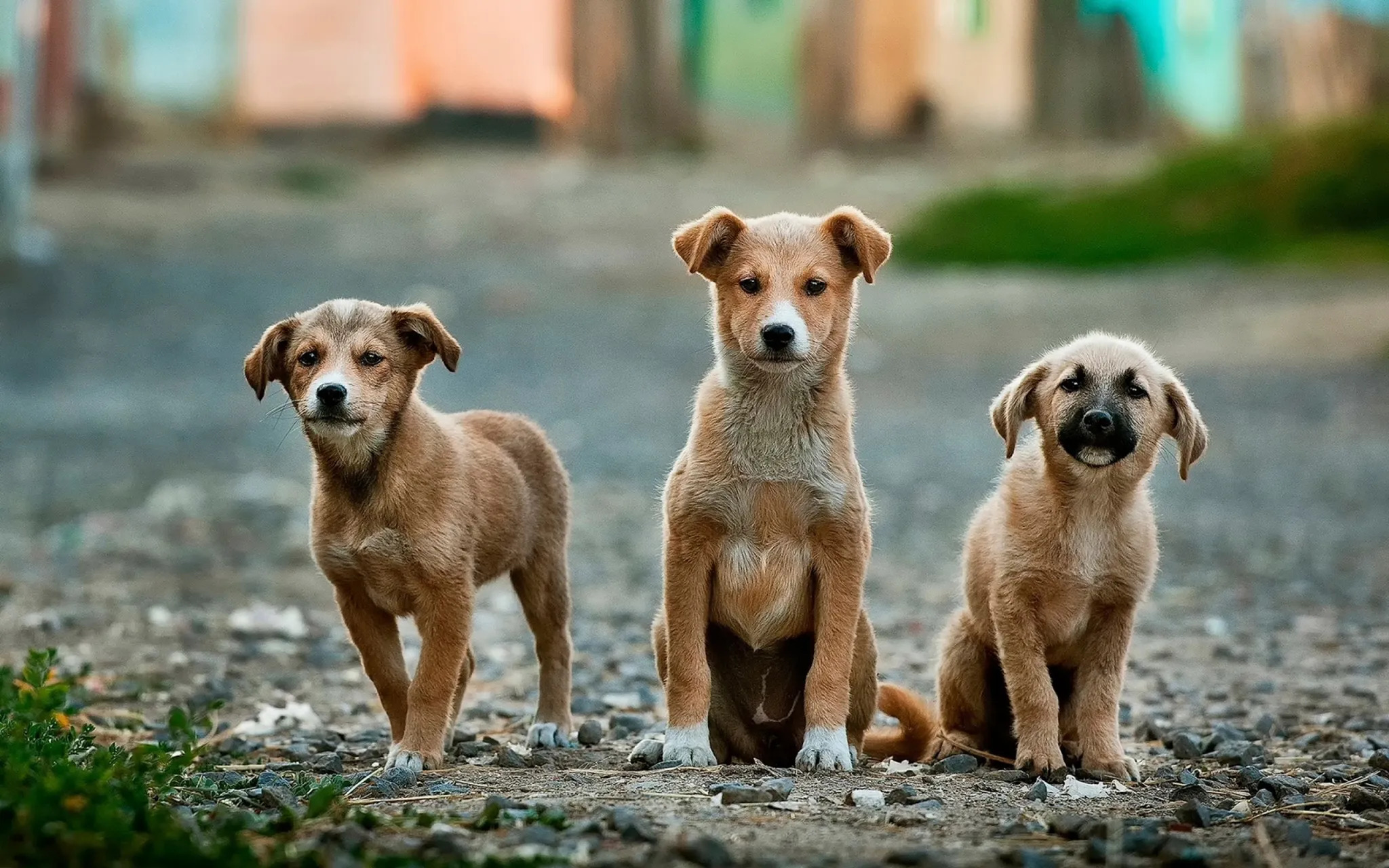
Use your dogs.json, or download the example annotation and dogs.jpg into the same folder.
Install Python 3 if you do not have it. This example uses only Python's standard library; it does not import Labelme.
Read the shapes
Save this as load_annotated.py beside dogs.json:
import json
from pathlib import Path

annotation = json.loads(Path("dogs.json").read_text())
print("Image:", annotation["imagePath"])
print("Size:", annotation["imageWidth"], annotation["imageHeight"])
for shape in annotation["shapes"]:
    print(shape["label"], shape["shape_type"], len(shape["points"]), "points")
Run it from that folder:
python load_annotated.py
For the supplied annotation, the image is dogs.jpg, the size is 2048 1280, and the shape is a dog polygon. Your point count will differ if you drew your own outline.
Each shape's points is a list of [x, y] image coordinates. The top-left corner is [0, 0]; x increases to the right and y increases downward. Coordinates can be fractional.
Keep the image with the annotation
imagePath is relative to the JSON file's folder. An annotation may also embed the image in imageData; the supplied sample uses the separate JPG. Keep both files together when moving this example.
To turn these polygons into pixels, continue with Export a polygon mask to PNG.