
Set Shape Flag defaults in Settings最新动态v7.6.0
Labelme
价格文档博客更新日志
English日本語
登录下载
Labelme登录
English日本語
价格文档博客更新日志
下载
  • Getting started
  • 1. Annotate your first image
  • 2. Edit annotations and work through a folder
  • 3. Try AI-assisted annotation
  • Installation
  • Install Labelme as App
  • Install Labelme using Terminal
  • Install Labelme using Terminal (old way)
  • Install Labelme Toolkit
  • All released versions
  • Troubleshoot
  • Use annotations in Python
  • Read annotations with Python
  • Export a polygon mask to PNG
  • Read an exported mask
  • Annotation reference
  • Shape tools and editing
  • AI prompts and models
  • Toolkit Docs
  • ai-annotate-rectangles
  • ai-text-to-annotations
  • ai-rectangle-to-mask
  • export-to-voc
  • export-to-yolo
  • export-to-yolo-obb
  • extract-image
  • import-from-yolo
  • import-from-yolo-obb
  • json-to-mask
  • json-to-masks
  • json-to-visualization
  • list-labels
  • print-stats
  • rename-labels
  • resize-image
  • Dataset Guide
  • 1. Download real dataset
  • 2. Verify dataset visually
  • 3. Verify dataset statistically
  • 4. Additional data collection
  • 5. Export dataset
  • Bonus: PyTorch dataset class

export-to-voc

You need to be a Pro member to access the full content of this.

export-to-voc converts your Labelme dataset to a commonly used VOC format:
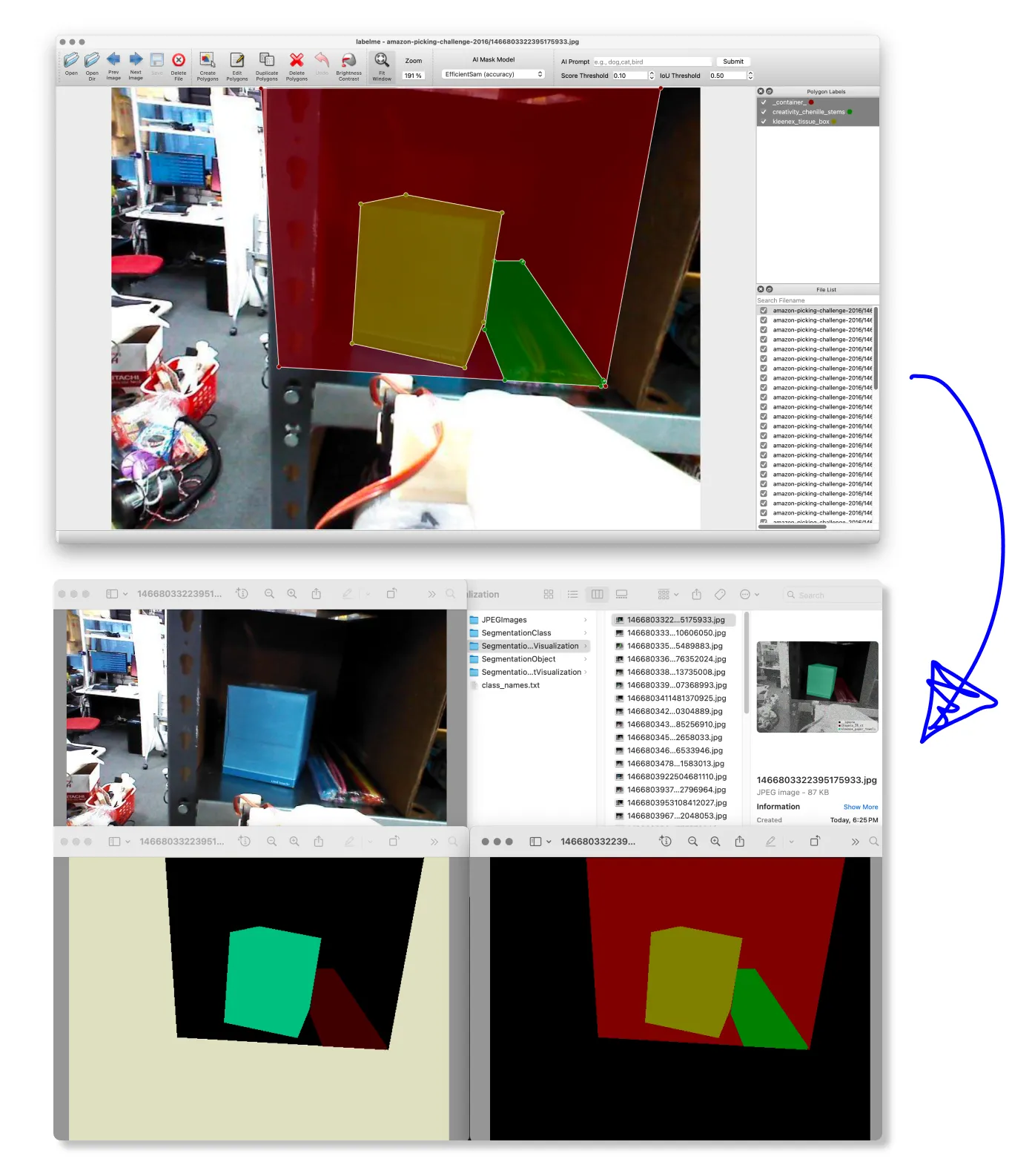
v0.1.2 (2025-03-28): Supports shape_type="mask".

Usage#

Pass a directory that contains JSON files.

labelmetk export-to-voc [OPTIONS] DATASET_DIR

Example#

labelmetk export-to-voc small_dataset \
  --class-names __ignore__,_background_,bottle,bus,car,chair,person,sofa

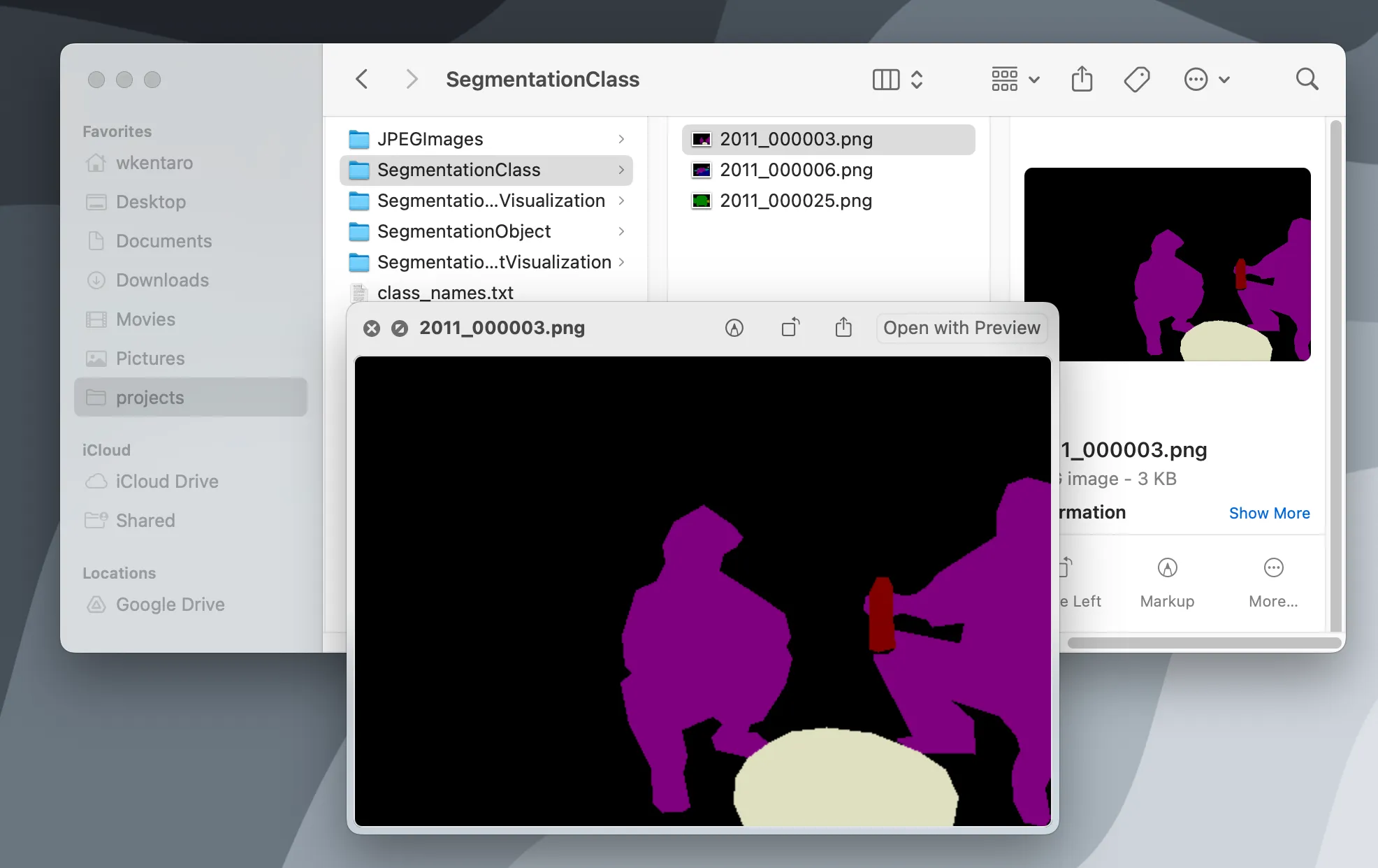
Terminal output of export-to-voc command Exported VOC format directory structure and files

Download an example dataset from:

small_dataset.zip (389KB)
  • Usage
  • Example
English日本語中文