
3. Try AI-assisted annotation
Click inside the middle dog to generate an AI outline. You'll inspect and correct the result before saving it.
Open a fresh image
Download dogs.jpg into a new folder and rename it dogs-ai.jpg. Open it in Labelme. Starting with a new filename keeps this exercise separate from your manual annotation.
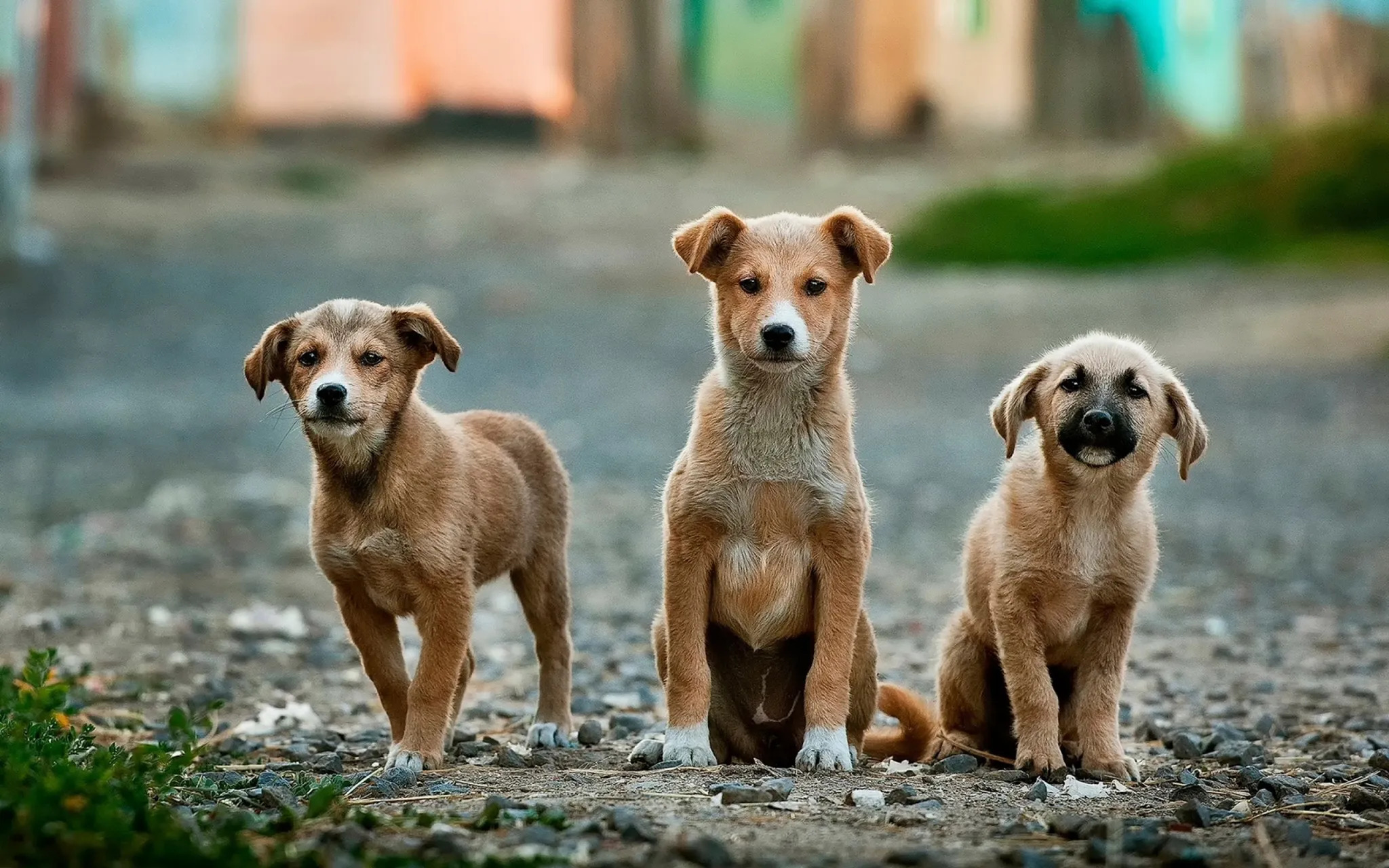
You should see the dogs without any outlines.
Choose the model and output
Choose AI-Points in the toolbar. In AI-Assisted Annotation, open the model picker. Use Download a model… or Manage models… to open the Models dialog, and download EfficientSam (speed) if it is not already available. Wait until it shows Downloaded, then close the dialog and select that model.
Choose Polygon as the output shape. After downloading the model, you can follow this lesson without an internet connection.
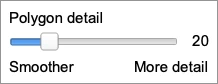
Before clicking the image, open the sliders button beside AI-Assisted Annotation. Set Polygon detail to 20, toward Smoother. You can also find it under Settings > AI assist > Polygon detail.
Lower values give you fewer vertices to adjust. Higher values keep finer boundary detail. Check the ears and paws when you inspect the outline.
Point at the dog
Click inside the middle dog's body. A proposed outline should appear around it.
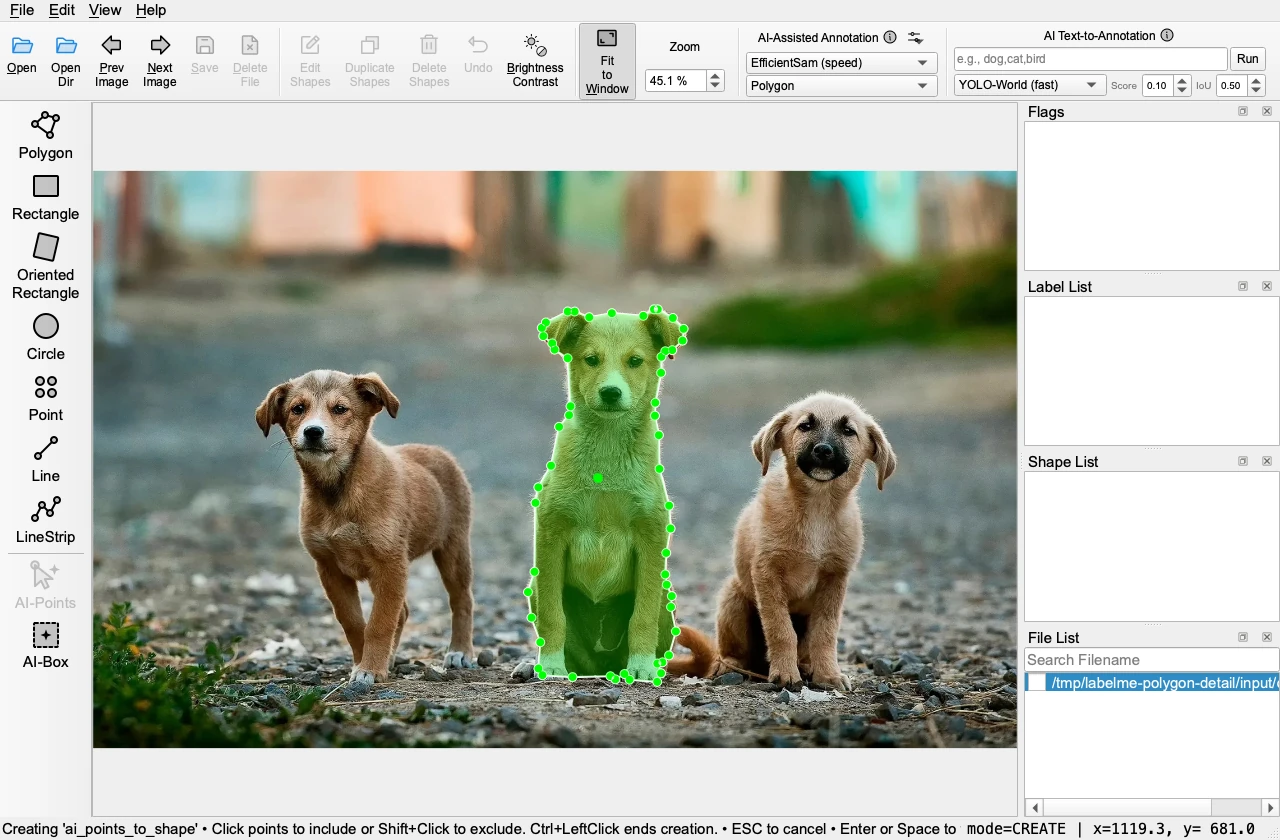
If part of the dog is missing, click inside that part to include it. If the outline includes background, hold Shift and click inside the unwanted area to exclude it. Each point should update the outline.
Press Enter to accept the outline. Enter dog in the label dialog and confirm. The result should appear in Shape List. A single prompt can produce several polygons, including small fragments.
Check, correct, and save
Choose Edit Shapes. Zoom in and inspect the ears, legs, and the space around the dog. Drag polygon points to correct any boundary that misses the dog or includes background. Select any unwanted fragment in Shape List and use Delete Shapes to remove it. AI output is a draft; your result may differ from the example.
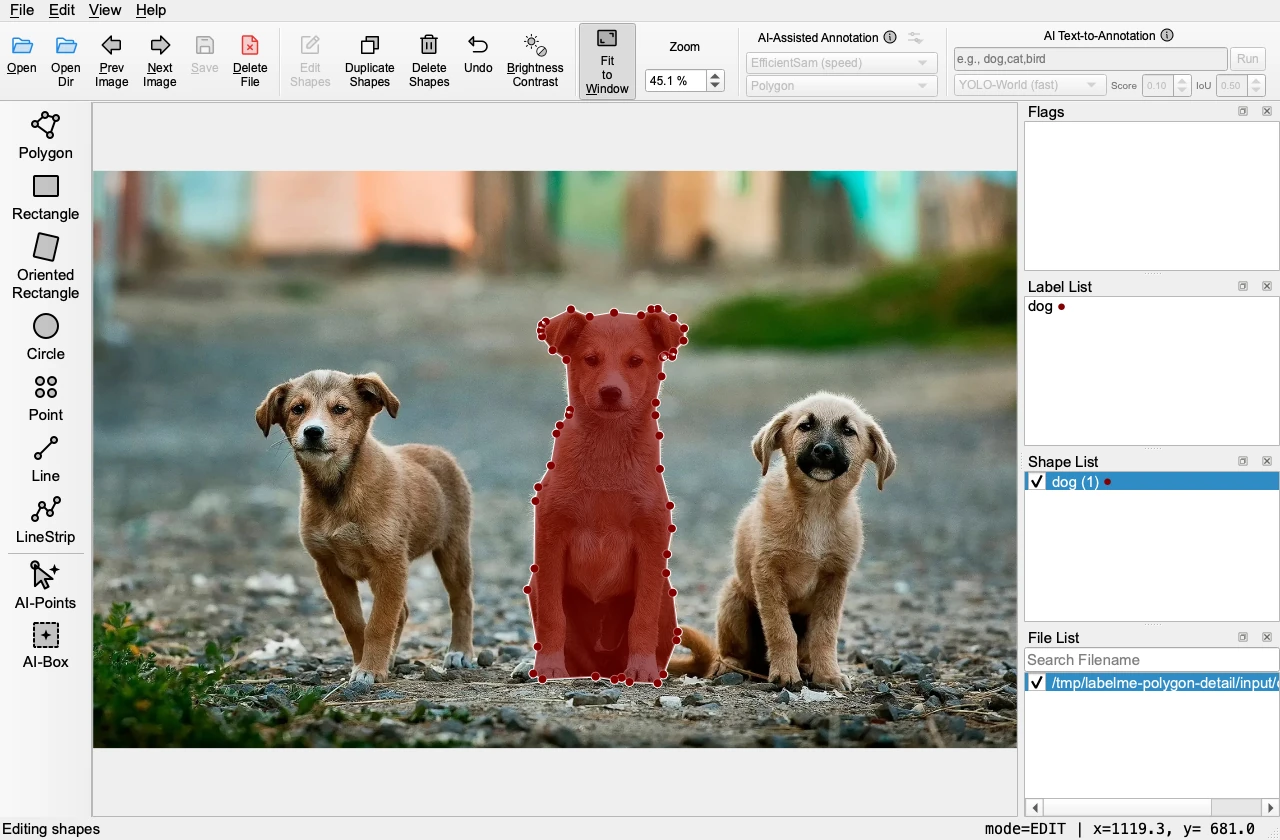
With automatic saving enabled, check that dogs-ai.json appears beside the image. Otherwise choose Save. Reopen that JSON file and confirm that the corrected outline and label remain.
What next?
Try the same workflow on your own image. For other shapes, box prompts, or text prompts, see the annotation reference. If you want to read your annotations in code, continue with Use annotations in Python.