
Mask fragments become one mask with one Undo to restore them
One object can end up spread across several mask annotations: separate passes catch different parts, or an obstruction breaks up what you can see. You have the pixels you need, but several shapes to manage for the same object.
In Labelme v7.5.0, Edit → Merge Shapes combines selected masks that share a label into one mask. Every marked pixel stays included, so you can consolidate the annotation without redrawing it. One Undo restores the original fragments. The feature addresses the request to unite masks from separate annotation passes.
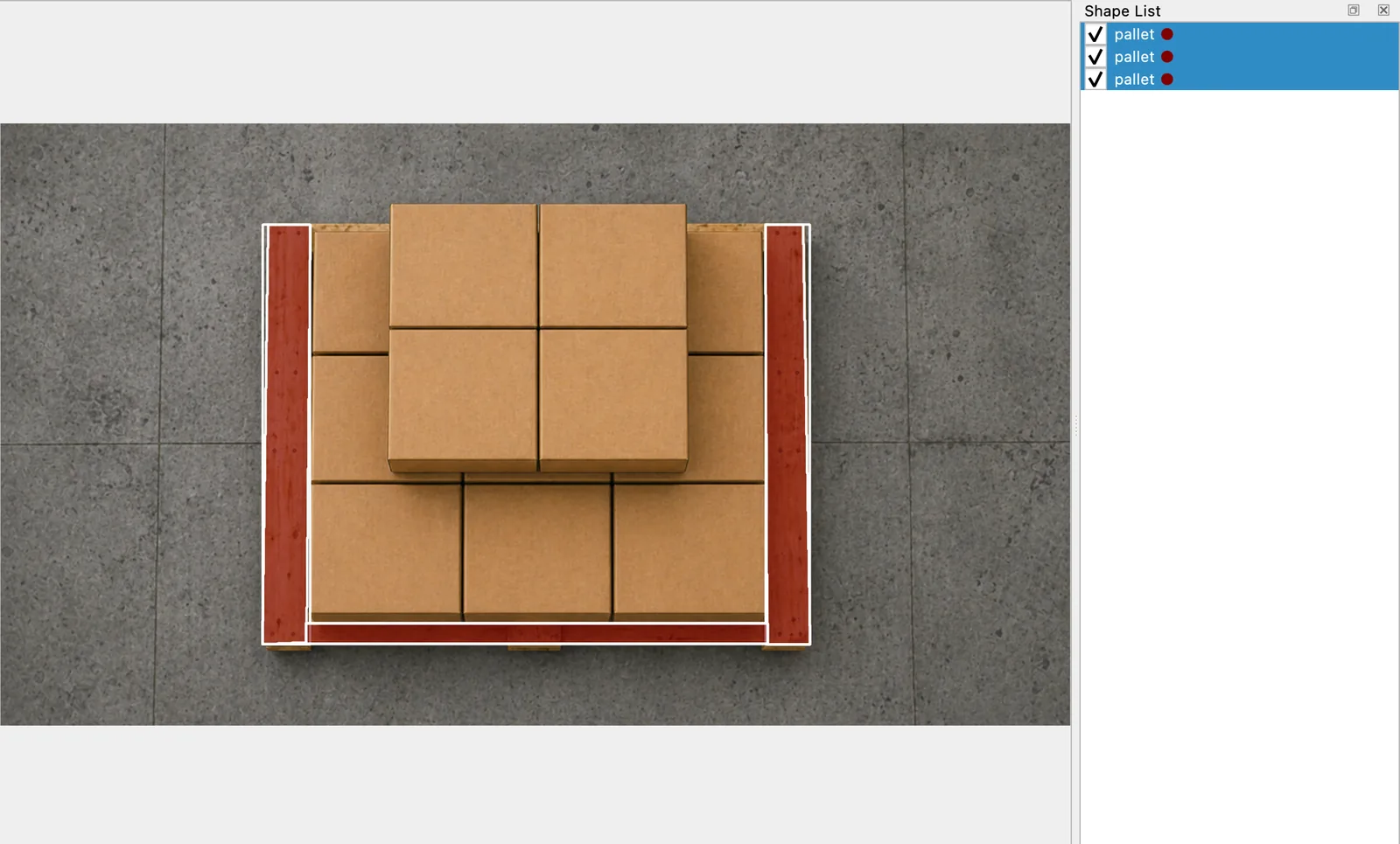
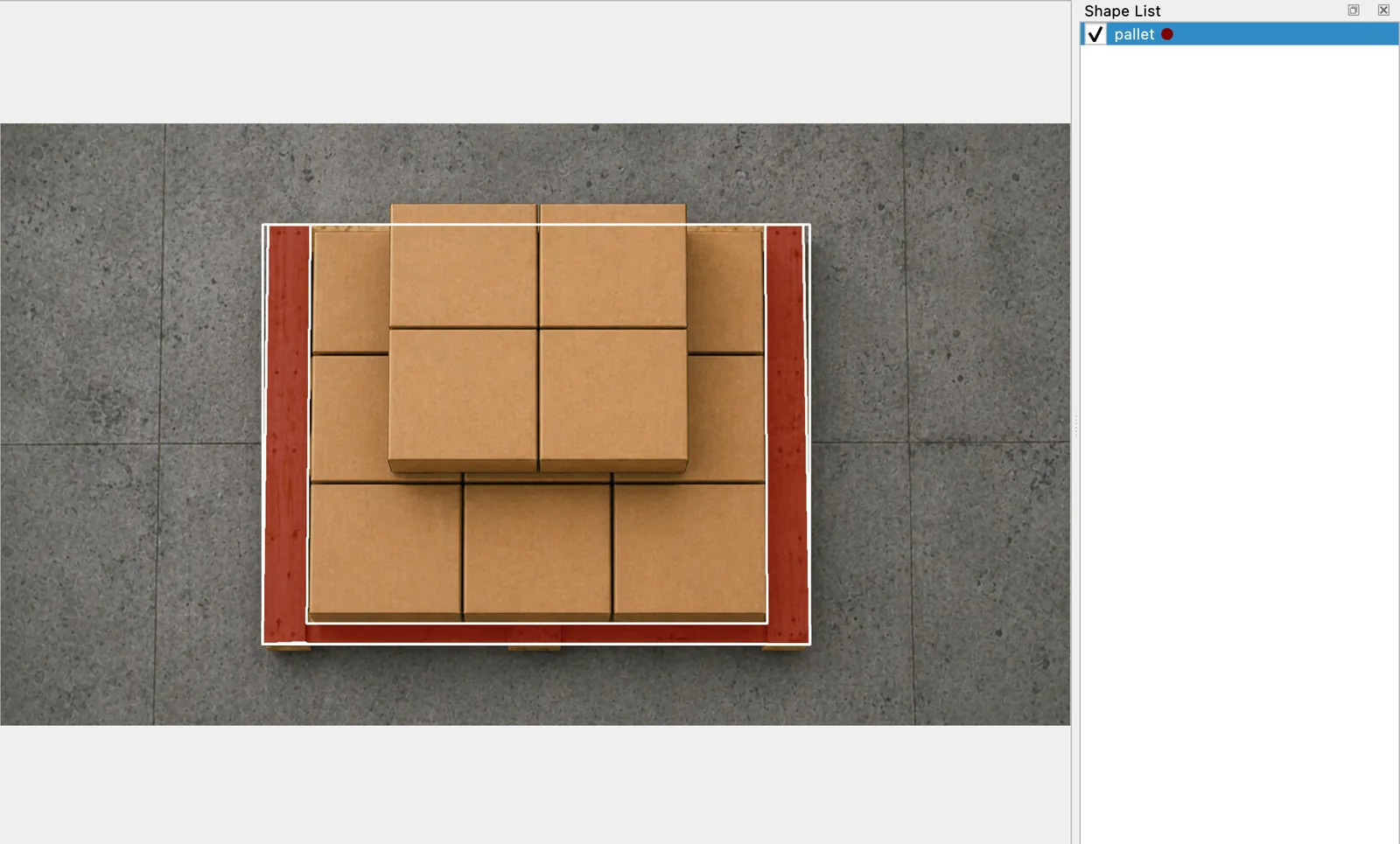
These offscreen renders use the same depalletizing example image and manually prepared masks. The boxes cover much of the pallet; the selected fragments mark exposed wood. Merging combines those marked areas without filling in the covered center.
Combine only the fragments you want together
- Select two or more Mask Shapes belonging to the object you want to consolidate. They must all carry the same label.
- Choose Edit → Merge Shapes, also available in the canvas context menu.
- Check the single resulting entry in the Shape List. To return to the separate masks, choose Undo once.
A shared label makes masks eligible to merge; it does not mean they depict the same object. Keep separate objects separate when your dataset needs individual instances. Overlapping or disconnected mask fragments can be combined, but polygon, rectangle, and mixed-shape selections cannot.
The merged mask keeps the first selected shape's group ID, flags, and description. If those differ across fragments, check the metadata you want to retain before merging. The merge rules at v7.5.0 define which selections qualify and what the resulting mask retains.